
How do I connect Google Drive to Centilio Sign?
 Integration Guide⏱️ 2 min read
Integrating Google Drive allows you to import documents directly and automatically save signed documents:
- Navigate to the 'Integrations' section in your settings
- Find 'Google Drive' in the list of available integrations
- Click 'Connect' and sign in to your Google account
- Authorize Centilio Sign to access your Drive files
- Choose your default folder for saving signed documents
☁️ Cloud Sync: Once connected, you can import documents directly from Drive when uploading, and completed documents will automatically sync back to your specified folder.
You can disconnect or reconfigure this integration at any time from the Integrations settings page.
Connect Google Drive:
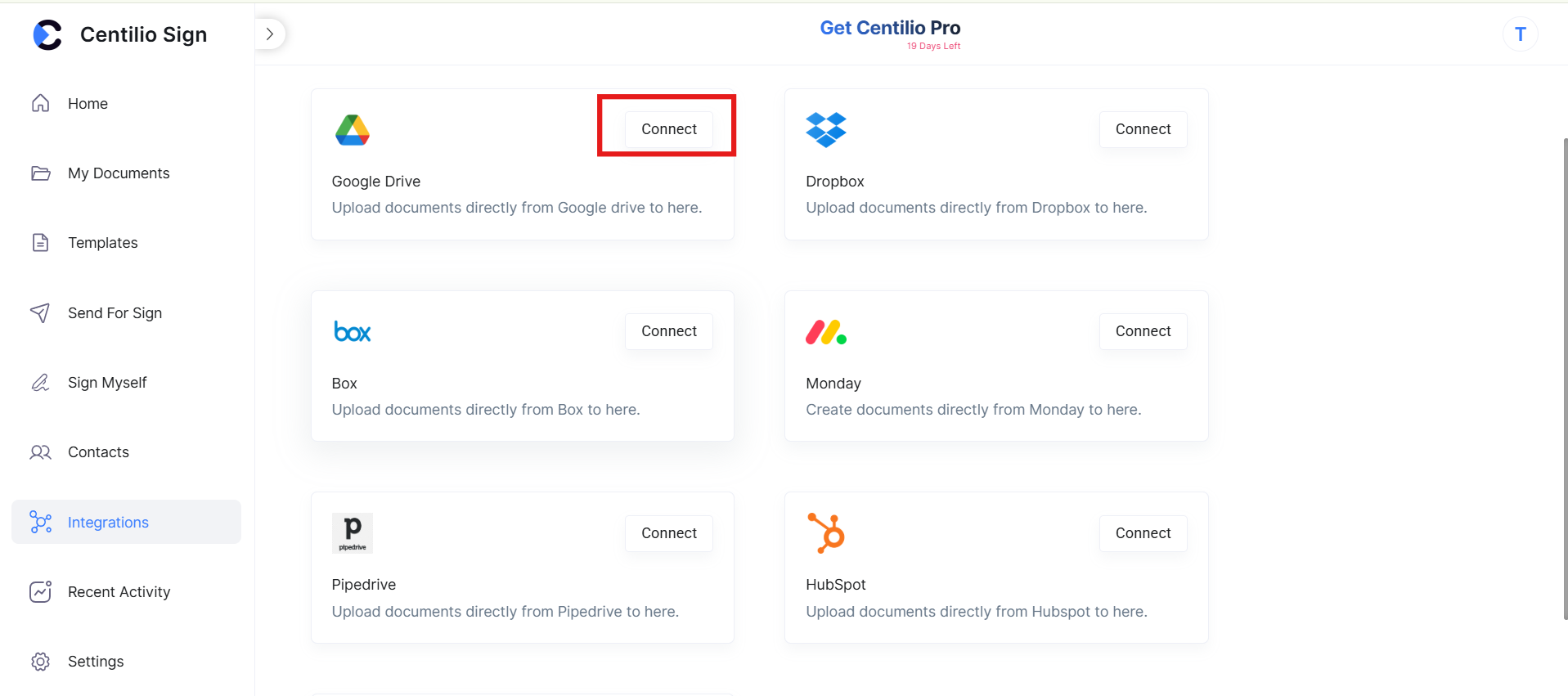
Click the 'CONNECT' button in the top right corner of card to Connect your account.